
Lesson 11: Multichannel Audio Playback
Learn how to create spatial sound experiences using multiple speakers. In preparation for your exhibition, master the basics of multichannel audio.
Goals for This Lesson
- Learn multichannel audio output methods and achieve spatial sound design
- Understand the concepts of soundscape, spatial music, and ambient music
- Set up 4-channel audio playback in Pd
- Understand speaker placement for exhibition spaces
What You Need
| Item | Description |
|---|---|
| PC | Pure Data installed |
| Multichannel audio interface | 4+ channel output support |
| Speakers x 4 | For exhibition use |
| Speaker cables | Check the required length |
| Headphones | For individual work |
Soundscape, Spatial Music, and Ambient Music
Soundscape
Soundscape means "landscape of sound." The concept was introduced by Canadian composer R. Murray Schafer and treats the sonic environment around us as an art form.
- Encompasses all environmental sounds: city noise, birdsong, flowing streams
- Includes the practice of soundwalks, which heighten awareness of listening
- Proposes the idea of designing the sonic environment itself
Spatial Music
Spatial music takes advantage of speaker placement to express sound in physical space.
- Different sounds from multiple speakers create the experience of sound moving through space
- Creates immersive experiences that surround the listener with sound
- Commonly used in electronic music and sound installations
Ambient Music
Ambient music is a genre that prioritizes atmosphere and environment.
- The concept was established by British musician Brian Eno
- Characterized as "music that can be actively listened to or ignored"
- Frequently uses slow changes, repetition, and sustained tones
- Has had a significant influence on sound art aesthetics
Reference: Examples of Spatial Audio Art
- Sound installations: Gallery works where different sounds are heard as visitors move through the space
- Multichannel concerts: Performances in spaces surrounded by 4 or more speakers
- Interactive spaces: Sensor-linked systems where sound moves through space in response to people's movements
Audio Output Fundamentals
Mono, Stereo, and Multichannel
| Format | Channels | Characteristics |
|---|---|---|
| Mono | 1ch | Single speaker output. No spatial positioning |
| Stereo | 2ch | Left and right speakers. Left-right positioning possible |
| Quad (4ch) | 4ch | Front/back, left/right speakers. Spatial positioning possible |
| Surround | 5.1ch+ | Cinema-style immersive audio |
Multichannel Output Settings in Pd
1. Open Audio Settings
- In the Pd menu, select "Media" → "Audio Settings"
- Select your multichannel audio interface as the output device
- Set the output channels to
4or more - Click "OK" to apply
Audio Interface Required
The PC's built-in speakers typically support only 2 channels (stereo). For 4+ channel output, you need a multichannel audio interface. Check which equipment is available for the course.
2. Specifying Multiple Channels with dac~
Add arguments to [dac~] to specify which channels to output to.
[dac~ 1 2]      ← Output to channels 1 and 2 (standard stereo)
[dac~ 3 4]      ← Output to channels 3 and 4
[dac~ 1 2 3 4]  ← Output to all four channels
Channel assignment:
| Channel | Typical Speaker Position |
|---|---|
| 1 | Front Left |
| 2 | Front Right |
| 3 | Rear Left |
| 4 | Rear Right |
4-Channel Audio in Pd
Basic Setup: Playing Different Audio Files on Four Speakers
Use [else/play.file~] to play different audio files from each speaker.
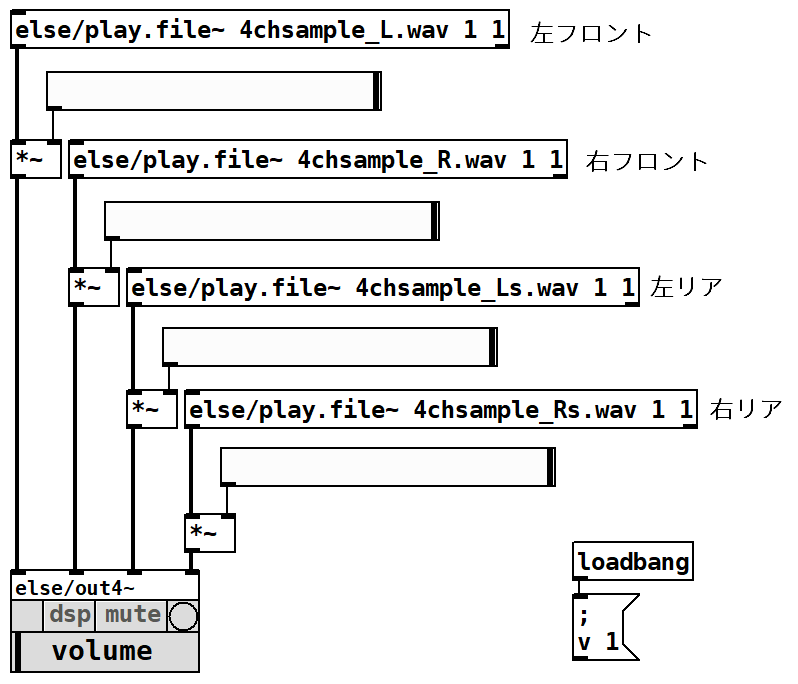
Patch structure:
- Use four
[else/play.file~]objects, each loading a different audio file:4chsample_L.wav— Front Left4chsample_R.wav— Front Right4chsample_Ls.wav— Rear Left4chsample_Rs.wav— Rear Right
- Set the arguments to
1 1to enable looping and auto-play - Use
[*~]on each output for volume control - Connect the four outputs to
[else/out4~]
Preparing Audio Files
Place the 4ch audio files in the same folder as the patch. Playing different ambient sounds (wind, water, birdsong, etc.) from separate speakers creates a rich spatial soundscape.
4-Channel Panning — else/pan4~
[else/pan4~] lets you position a sound in 2D space and distribute it across four speakers.
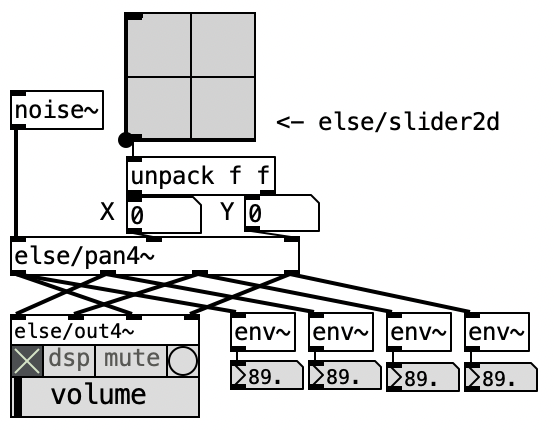
Patch structure:
- Feed a sound source (e.g.,
[noise~]) into[else/pan4~] - Use
[else/slider2d]to control the X/Y position (-1 to 1) - Use
[unpack f f]to split the X and Y values and send them to[else/pan4~]'s 2nd and 3rd inlets - Connect the four outlets of
[else/pan4~]to[else/out4~]
Drag the [else/slider2d] with your mouse to change the sound position in real time. You can also feed micro:bit accelerometer X/Y values to control the position by tilting.
Rotating Sound
You can make sound automatically rotate around the four speakers.
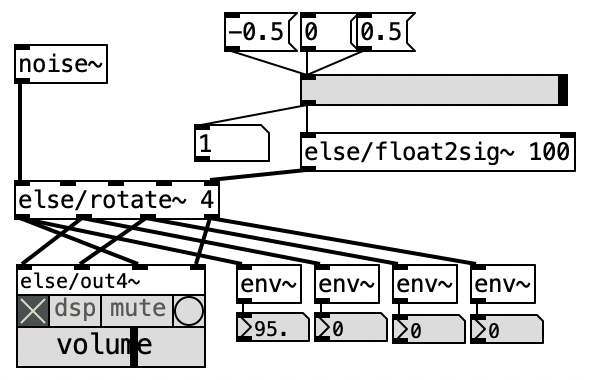
Patch structure:
- Prepare a sound source such as
[noise~] - Feed it into
[else/rotate~ 4]— this object automatically rotates sound across 4 channels - Control the rotation speed with
[else/float2sig~ 100]or similar - Use a slider (-0.5 to 0.5) to control speed and direction — positive values for clockwise, negative for counter-clockwise
- Connect the four outlets to
[else/out4~]
Adjusting Rotation Speed
The argument to [else/float2sig~] (e.g., 100) controls the smoothness of the signal conversion. Rotation speed is determined by the slider value. 0 stops the rotation; larger values produce faster rotation. Adjust to match the tempo of your piece.
Preparing the Exhibition Space
Speaker Placement Basics
For a 4-channel setup, place speakers in a square (or rectangle) around the listener.
     [Front]
  SP1 ─────── SP2
   |           |
   |  Listener |
   |     ●     |
   |           |
  SP3 ─────── SP4
     [Rear]
Placement guidelines:
- Speaker direction: Point all speakers toward the center (the listener's position)
- Distance: Place speakers at equal distances (roughly 1.5--3 m)
- Height: Match the listener's ear height (adjust for seated position if applicable)
- Wall distance: Keep speakers at least 30 cm from walls to avoid bass emphasis
Cable Management
Safety
- Tape cables to the floor with gaffer tape to prevent tripping hazards
- Do not bundle power cables with audio cables (causes noise interference)
- Leave slack in cables so they do not pull out if tugged
Adjusting Volume Balance
- Play the same test tone through each channel in sequence (e.g.,
[osc~ 1000]) - Stand at the listening position (center) and check that each speaker sounds equally loud
- Reduce louder speakers using
[*~]in the Pd patch - Play all channels simultaneously and verify a natural overall balance
Volume Adjustment Tip
Instead of adjusting volume on the hardware side, adjust it with [*~] objects in the Pd patch. This way, you get the same balance every time you open the patch.
Applying Multichannel to Your Work
Incorporate multichannel output into your own piece.
| Idea | Implementation |
|---|---|
| Sound rotates around the listener | Use [phasor~] for 4ch rotation |
| Sensor controls sound position | Accel X → L/R pan, Accel Y → front/back pan |
| Different sound from each speaker | Route four sources to separate channels |
| Ambient sound surrounds the space | Output noise or environmental sound across 4ch |
Checklist
- [ ] Understood the concepts of soundscape, spatial music, and ambient music
- [ ] Understood the differences between mono, stereo, and multichannel
- [ ] Configured multichannel output in Pd's audio settings
- [ ] Understood how to specify multiple channels with
[dac~] - [ ] Understood how 4ch panning works
- [ ] Understood the basics of speaker placement for exhibitions
- [ ] Thought of ideas for applying multichannel to your own work